-4.png?width=500&height=115&name=6789782.fs1.hubspotusercontent-na1.nethubfs6789782Product%20logosDatapharm_RGB_Logo1%20(3)-4.png)
If two of your products use the same SmPC or PIL (combined document) but have been uploaded separately, you should keep only one copy of the document in Publisher. This prevents duplication and ensures easier updates in the future.
To remove the duplicate:
-
Open the Product Group that contains the products sharing the combined SmPC/PIL, and start a Submission Update.
-
Identify the duplicated SmPC/PIL document and retire one of them.
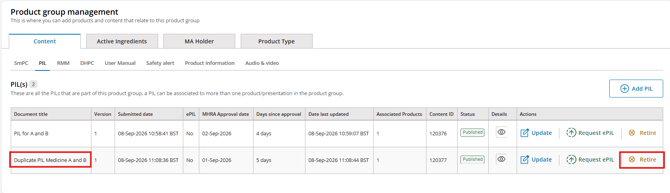
-
Update the first product
- Open the Update action for one of the products.

- Check that the remaining combined SmPC/PIL is correctly associated.
- If it is not associated, amend the document selection to include it.
- Open the Update action for one of the products.
-
Update the second product
- Repeat the same update process for the other product/variation to ensure both are linked to the single shared SmPC/PIL.
-
Once both products have been corrected and the duplicate document has been retired, complete the submission.
Once you complete the steps:
- The QC team will update the remaining SmPC/PIL so that it includes all relevant presentation names.
- Going forward, you will only need to maintain one SmPC/PIL for the entire product group, making future updates simpler and faster, provided the combined SmPC remains appropriate for all variations.