-4.png?width=500&height=115&name=6789782.fs1.hubspotusercontent-na1.nethubfs6789782Product%20logosDatapharm_RGB_Logo1%20(3)-4.png)
Please see below how to check if the document has any 'issues' that could cause the file to rejected:
- Open you Word SmPC file
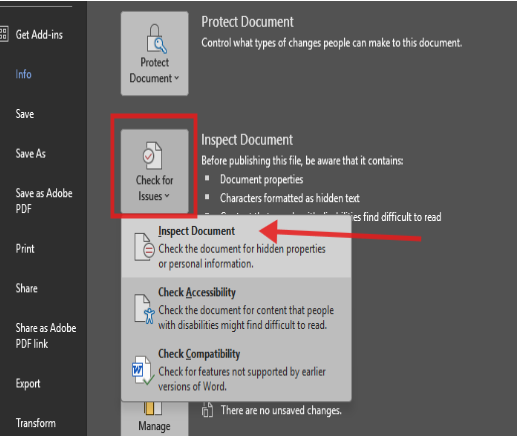
- go to 'File' on the toolbar, and then 'Info' tab
- you should see 'Check for results' button, please click it and select 'Inspect Document'
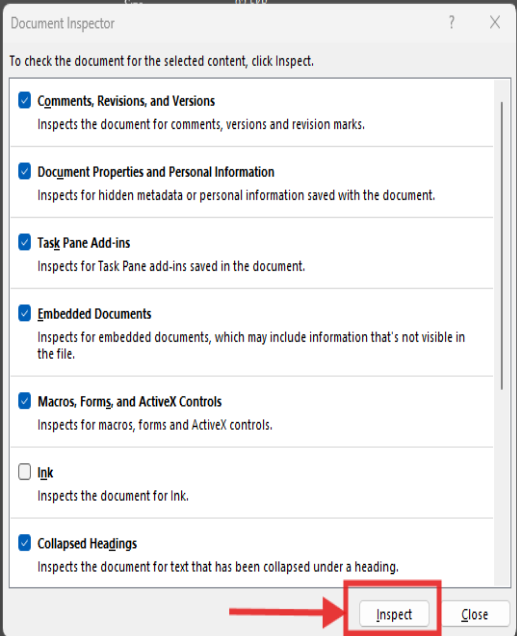
- The small Document Inspector window will pop-out, press 'Inspect' button:
- the inspection process will start, and you will see the results. Anything with the exclamation mark will need your attention. For the example below we have flagged two issues:
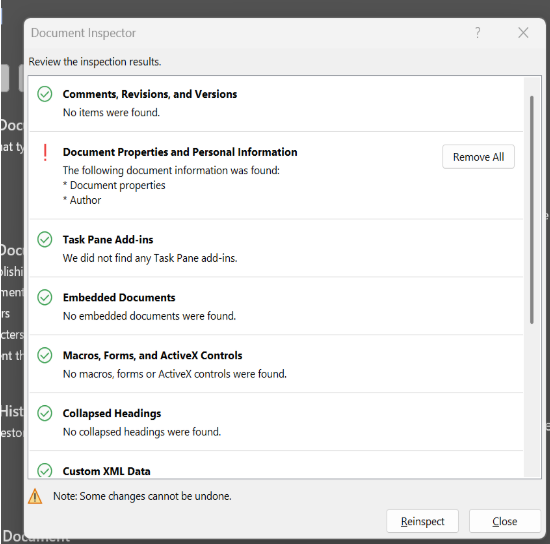
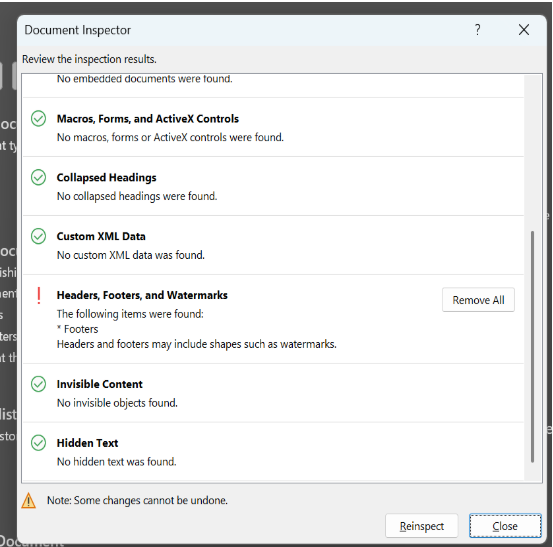
- To alleviate the issues, you need to press 'Remove All' button for each case, and then 'Reinspect' on the bottom of the window, which should show only green ticks.
- Save the file as new, you can amend slightly the name, please always try to keep it as simple as possible